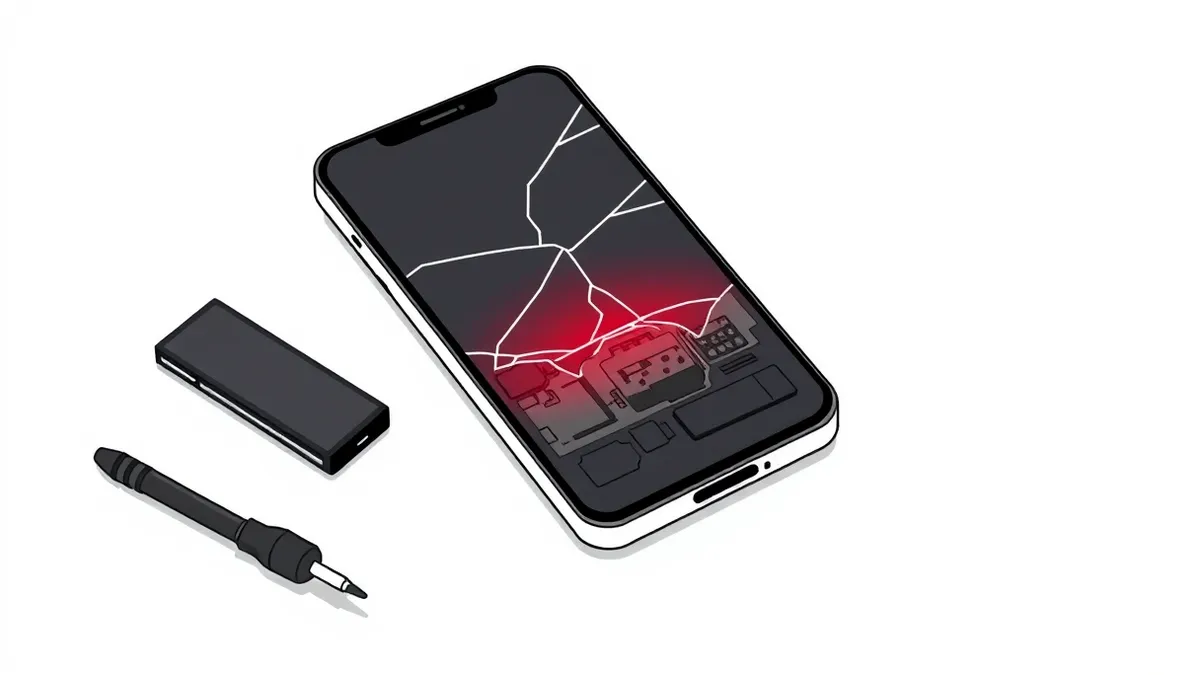
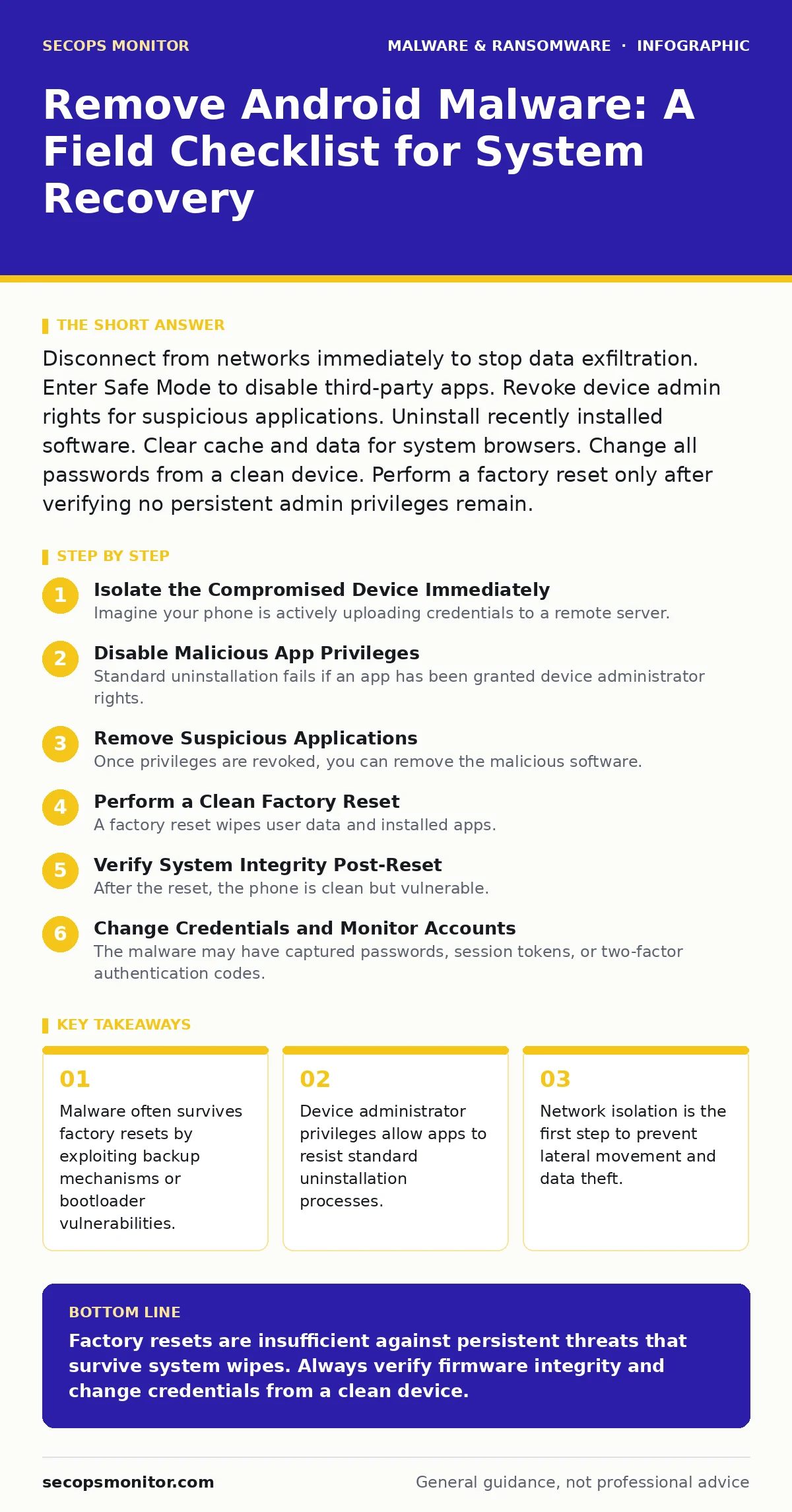
Disconnect from networks immediately to stop data exfiltration. Enter Safe Mode to disable third-party apps. Revoke device admin rights for suspicious applications. Uninstall recently installed software. Clear cache and data for system browsers. Change all passwords from a clean device. Perform a factory reset only after verifying no persistent admin privileges remain.
Isolate the Compromised Device Immediately
Imagine your phone is actively uploading credentials to a remote server. Continuing to use the internet accelerates this theft. You must cut the connection before attempting any remediation. This stops the malware from receiving new commands or exfiltrating additional data.
- Enable Airplane Mode: This disables Wi-Fi, cellular data, and Bluetooth instantly.
- Remove SIM Card: This prevents the device from connecting to cellular networks if Airplane Mode fails.
- Disable NFC: This stops contactless communication that could trigger malicious pairing attempts.
- Turn Off Location Services: This prevents the malware from tracking your physical movements.
Disable Malicious App Privileges
Standard uninstallation fails if an app has been granted device administrator rights. These rights allow the app to lock the screen, wipe data, or prevent its own removal. You must revoke these permissions manually before the app can be deleted. This is a critical step often missed by casual users.
- Enter Safe Mode: This disables all third-party apps, allowing you to access settings without interference.
- Revoke Device Admin Rights: Go to Security settings and disable admin privileges for any unknown apps.
- Check Accessibility Services: Malware often uses accessibility features to read screen content and mimic user taps.
- Disable Notification Access: This prevents apps from reading sensitive information displayed in notifications.
Remove Suspicious Applications
Once privileges are revoked, you can remove the malicious software. Do not rely on the app icon alone, as malware often mimics legitimate system apps. Check the installation date and package name to identify recent additions. Removing these apps eliminates the primary payload.
- Uninstall Recent Apps: Remove any applications installed shortly before the issues began.
- Clear Browser Cache: This removes malicious redirects and scripts stored in the browser data.
- Reset App Preferences: This disables all apps without deleting data, helping to identify hidden processes.
- Check Hidden Apps: Use file managers to look for apps with no name or icon in the app list.
Perform a Clean Factory Reset
A factory reset wipes user data and installed apps. However, it does not always remove malware that has infected the system partition or bootloader. To ensure a clean slate, you must perform a hard reset from recovery mode. This bypasses the operating system and wipes all partitions.
- Backup Critical Data: Save only essential files like photos and documents to a trusted computer.
- Wipe Cache Partition: This clears temporary system files that may contain malicious scripts.
- Factory Reset from Recovery: This ensures the OS is reinstalled from a known good state.
- Skip Google Account Restore: Do not restore from a cloud backup immediately to avoid reintroducing malware.
Verify System Integrity Post-Reset
After the reset, the phone is clean but vulnerable. You must verify that the firmware is genuine and that no malicious apps were restored. Check the system version and compare it to the official manufacturer release. This ensures you are not running a modified or compromised operating system.
- Update System Firmware: This patches known vulnerabilities that the malware may have exploited.
- Install Apps Only from Official Stores: This reduces the risk of installing repackaged or malicious software.
- Enable Play Protect: This scans apps for known threats before and after installation.
- Monitor Battery Usage: Unusual battery drain can indicate hidden processes running in the background.
Change Credentials and Monitor Accounts
The malware may have captured passwords, session tokens, or two-factor authentication codes. You must assume all credentials stored on the device are compromised. Change passwords from a different, clean device to prevent the malware from intercepting the new credentials.
- Change Email Passwords: This secures the primary account used for password resets.
- Update Banking Credentials: This prevents unauthorized financial transactions.
- Revoke Active Sessions: This forces all devices to re-authenticate, closing unauthorized access.
- Enable Two-Factor Authentication: This adds an extra layer of security even if passwords are stolen.
Consider Advanced Recovery Options
If the malware persists after a factory reset, it may be firmware malware or a bootloader infection. These are rare but severe. In such cases, standard remediation fails. You may need to flash the stock firmware manually or seek professional help. This is similar to reimaging infected computers on a desktop scale.
- Flash Stock Firmware: This replaces the entire operating system with a clean version from the manufacturer.
- Check Bootloader Status: An unlocked bootloader may indicate prior modification or tampering.
- Monitor for Recurrence: If symptoms return, the hardware may be compromised, requiring replacement.
- Review Recovery Time Objective: Plan for the time needed to fully restore services and data securely.
Key takeaways
- Malware often survives factory resets by exploiting backup mechanisms or bootloader vulnerabilities.
- Device administrator privileges allow apps to resist standard uninstallation processes.
- Network isolation is the first step to prevent lateral movement and data theft.
Factory resets are insufficient against persistent threats that survive system wipes. Always verify firmware integrity and change credentials from a clean device.
Frequently asked questions
Can Android malware infect my PC?
Android malware is generally platform-specific, but it can steal credentials that give attackers access to your PC accounts.
Does a factory reset remove all malware?
It removes most malware, but advanced threats embedded in the bootloader or firmware can survive a standard reset.
How do I know if my Android phone has malware?
Look for unexpected battery drain, unknown apps, increased data usage, or pop-up ads appearing outside of browsers.
Is Safe Mode enough to remove malware?
Safe Mode disables third-party apps, allowing you to uninstall them, but it does not remove the malware files permanently.
How this guide was produced: written by the SecOps Monitor editorial team with AI assistance, checked against the public references listed below, and reviewed when the facts change. See our editorial policy or report an error.