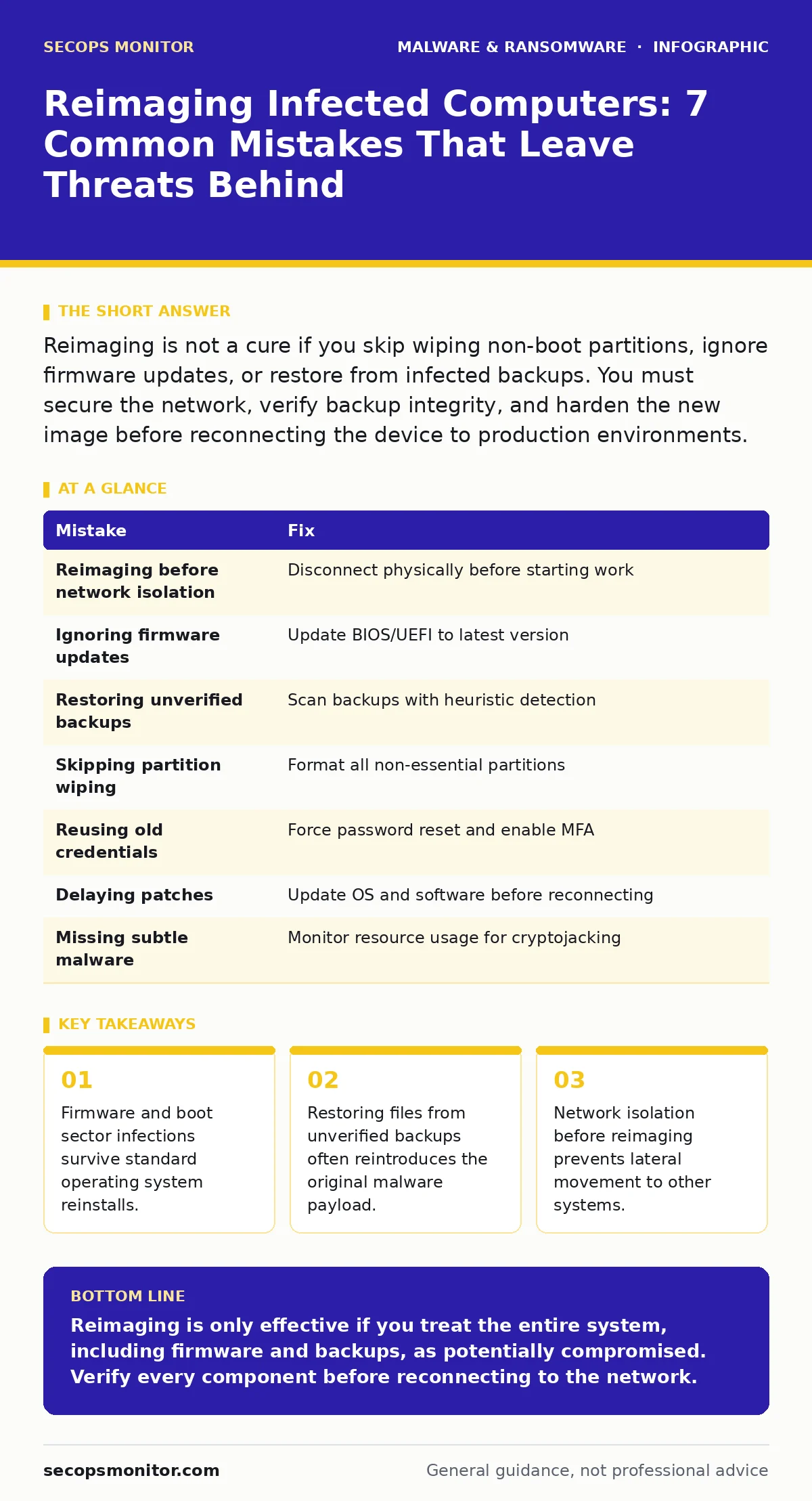
Reimaging is not a cure if you skip wiping non-boot partitions, ignore firmware updates, or restore from infected backups. You must secure the network, verify backup integrity, and harden the new image before reconnecting the device to production environments.
Mistake 1: Reimaging Before Isolating the Network Connection
You often rush to fix the broken machine because users are waiting. You unplug the drive, insert a clean installation media, and begin the process while the computer remains connected to the corporate LAN or Wi-Fi. This speed comes with a hidden cost. If the system is already compromised, the malware can communicate with command and control servers during the reboot phase. It may download additional tools or exfiltrate data before the new operating system even loads.
Why it hurts:
The infection uses the brief window of vulnerability to spread. Lateral movement tools embedded in the malware can scan your network for other vulnerable hosts. You effectively turn the infected machine into a launchpad for a wider breach while you focus on fixing the single endpoint.
The fix:
Disconnect the machine from all network interfaces before you touch the disk. Use a physical cable disconnect or disable the wireless adapter in the BIOS if possible. Keep it isolated until you have verified the new image is clean and patched. This stops the malware from talking to its controller or finding new victims.
Mistake 2: Ignoring Firmware and BIOS Updates
Standard reimaging wipes the hard drive and reinstalls the operating system. It does not touch the firmware stored in the motherboard’s non-volatile memory. Many modern threats target this layer because it persists across all operating system changes. If you skip checking the firmware version, you leave a backdoor open.
Why it hurts:
Bootkits and other firmware-level threats load before the operating system. They can intercept authentication credentials and inject code into the new installation. You will see a clean desktop, but the underlying hardware is still compromised. This creates a false sense of security that fails during forensic review.
The fix:
Before installing the new operating system, update the BIOS and UEFI firmware to the latest version from the manufacturer. Clear the CMOS settings if the vendor recommends it for security resets. This ensures that any code residing in the pre-boot environment is overwritten with verified, signed binaries.
Mistake 3: Restoring Data from Unverified Backups
You restore the operating system and immediately pull user files from your backup server. You assume the backup is safe because it is older than the infection. This assumption is frequently wrong. If the malware was present on the system for weeks before detection, your backups may also contain the infected files.
Why it hurts:
You reintroduce the malware instantly. The new system is clean, but the restored documents or executables carry the payload. This defeats the purpose of the reimage and wastes time. It also suggests that your backup integrity checks are missing a critical step.
The fix:
Verify backup integrity before restoration. Use immutable backups that cannot be modified or deleted once written. Scan the backup data with heuristic detection tools before copying it to the new machine. Only restore files that pass security scans, and exclude system files and executables from restoration.
Mistake 4: Skipping Partition Wiping on Multi-Drive Systems
Many computers have secondary drives for data storage or recovery partitions. You reinstall the OS on the primary drive and assume the secondary drive is safe. You do not format or wipe these additional partitions. This leaves a reservoir of infected data ready to be accessed.
Why it hurts:
Malware often hides in less obvious partitions to avoid detection. If you do not wipe these areas, the malware can reactivate when the user accesses the secondary drive. It can also use the stored data to re-infect the clean primary drive through scheduled tasks or autorun features.
The fix:
Identify all storage devices connected to the system. Format or securely wipe every partition that is not strictly necessary for the operating system installation. If the secondary drive contains critical data, isolate it and scan it thoroughly before reconnecting it to the new system. Do not assume data drives are immune to infection.
Mistake 5: Using the Same Credentials for the New Account
You create a new user account on the fresh installation. You use the same password as before because it is convenient and the user expects it. You do not consider that the attacker may have captured the old credentials during the initial breach.
Why it hurts:
The attacker already has the keys to the castle. Even with a clean system, they can log in immediately using the stolen credentials. This allows them to reinstall persistence mechanisms or exfiltrate data from the new environment. The reimage becomes a temporary delay rather than a solution.
The fix:
Force a password reset for all accounts associated with the device. Use a new, unique password that has not been used on any other system. Implement multi-factor authentication to add a layer of security that passwords alone cannot provide. This ensures that even if credentials were stolen, the attacker cannot gain access.
Mistake 6: Failing to Patch the New Installation Before Reconnection
You finish the installation and reconnect the machine to the network before applying updates. You assume the base image is secure. It is not. New vulnerabilities are discovered daily, and attackers exploit known weaknesses in unpatched systems.
Why it hurts:
The new system is vulnerable to the same exploits that may have infected the old one. Attackers can use automated scanners to find unpatched systems on the network. They can re-infect the machine within minutes of it coming online. This turns your maintenance effort into a recurring cycle of infection and repair.
The fix:
Apply all critical security patches to the new operating system before connecting it to the network. Verify that the software installed is also up to date. Only after the system is fully patched and scanned should you re-enable network access. This reduces the attack surface and prevents immediate re-compromise.
Mistake 7: Overlooking Cryptojacking and Wiper Signatures
You check for traditional viruses and ransomware, but you miss subtle signs of cryptojacking or wiper malware. These threats may not encrypt files or demand payment immediately. They may run silently in the background, consuming resources or preparing to destroy data later.
Why it hurts:
You miss the ongoing threat. Cryptojacking can slow down system performance and increase energy costs without obvious signs. Wiper malware may delay its execution, causing data loss days after you think the system is clean. This leads to operational inefficiency and potential data loss.
The fix:
Monitor system resource usage after reimaging. Look for unusual CPU or GPU activity that indicates hidden processes. Check for signs of wiper activity, such as missing system files or altered boot configurations. Use endpoint detection tools that look for behavior rather than just known signatures.
| Mistake | Fix |
|---|---|
| Reimaging before network isolation | Disconnect physically before starting work |
| Ignoring firmware updates | Update BIOS/UEFI to latest version |
| Restoring unverified backups | Scan backups with heuristic detection |
| Skipping partition wiping | Format all non-essential partitions |
| Reusing old credentials | Force password reset and enable MFA |
| Delaying patches | Update OS and software before reconnecting |
| Missing subtle malware | Monitor resource usage for cryptojacking |
Key takeaways
- Firmware and boot sector infections survive standard operating system reinstalls.
- Restoring files from unverified backups often reintroduces the original malware payload.
- Network isolation before reimaging prevents lateral movement to other systems.
Reimaging is only effective if you treat the entire system, including firmware and backups, as potentially compromised. Verify every component before reconnecting to the network.
Frequently asked questions
Can a simple antivirus scan replace reimaging?
No, because advanced malware can hide in system files or firmware that standard scanners miss. Reimaging ensures a clean baseline.
How long should I wait before reconnecting the computer?
Wait until all patches are applied and a full security scan confirms no threats are present. This may take several hours.
Is it safe to keep the same hardware?
Yes, if you update the firmware and wipe all storage. The hardware itself is not infected, but the software layers are.
What if I don’t have clean backups?
You must restore data from a known clean source or manually recreate files. Using infected backups defeats the purpose of reimaging.
How this guide was produced: written by the SecOps Monitor editorial team with AI assistance, checked against the public references listed below, and reviewed when the facts change. See our editorial policy or report an error.